
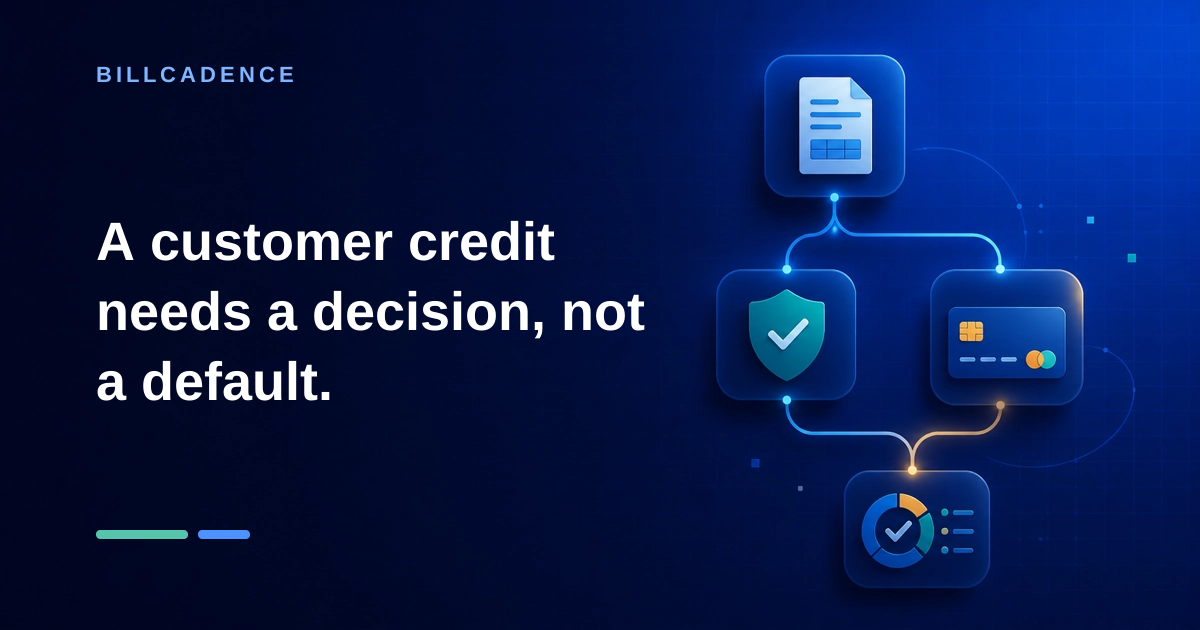
The next bill and an unused credit are on the same customer account. Your job is to connect the right amount to the right invoice.
Choose your path: [QuickBooks Online](#quickbooks-online) or [Xero](#xero).
Check whether the generated invoice has been sent. Continue with this workflow only if it is still unsent.
Decide the result before choosing the product steps:
- All: use the available credit when this invoice should use it and the resulting total is correct.
- Part: use the amount intended for this bill and leave the unused credit for later. The product sections explain which existing credits allow a partial amount.
- None: leave the credit untouched when it belongs on a later bill or its purpose is unclear.
Confirm that the invoice and credit belong to the same customer. Check the currency shown on each record. Confirm that your product allows credit in that currency to be applied to the invoice’s currency. Stop if it does not, or if the intended amount is unclear.
A closed accounting period is one whose books are finalized. For records in that period, stop and ask your accountant or bookkeeper to review the proposed change. A delayed credit from an earlier accounting period also needs that review before you add it. Use the existing credit; do not create another credit, issue a refund, or move it to another customer.
QuickBooks Online
Open the generated invoice for review. Check its customer, total, and amount due against the credit you intend to use.
Identify which existing credit you have on the customer account:
- Credit memo: a credit you can apply against an unpaid invoice, in full or in part.
- Delayed credit: a saved credit you add to an invoice as a negative line.
If you have a credit memo
In Receive payment, look for the generated invoice among the unpaid invoices. Proceed only if it is available for selection. Otherwise, leave the record unchanged for review.
- Open Receive payment and select the customer. Their unpaid invoices and available credits appear.
- Select the generated invoice and the existing credit memo.
- In the Payment column, enter only the portion of the credit memo you want to apply to this invoice.
- Review the total, then save the payment record. Any unused part remains available as customer credit.
Do not rely on Automatically apply credits to target this bill. That setting applies available credit to the oldest unpaid invoice, which may be a different one.
If you have a delayed credit
Start by opening the generated invoice you want to reduce, before sending it. Add the saved delayed credit inside the invoice; Receive payment is the credit-memo route.
In the invoice layout with a Manage panel:
- Select Manage at the top of the invoice.
- Expand Suggestions.
- Select the blue Suggested transactions link to open the customer's available transactions.
- Find the existing Delayed credit you intend to use and select Add beside it.
- Review the credit line and updated invoice total, then save.
The delayed credit appears as a negative line on the invoice. If the delayed credit is not listed, confirm that it already exists for this customer before continuing.
Check the result
Reopen the invoice and check its displayed balance or status. Does the amount still due reflect the credit you intended to use?
Then run Customer Balance Detail for the customer, using dates that include the invoice and credit. Check any credit that remains unused, if any, and record the remaining balance as displayed. Compare that balance with the amount you intended to leave for later. Matching amounts confirm that the displayed balances agree with the amounts you expected.
Xero
Choose whether the repeating invoice should wait for review or may be emailed when created. Save As Draft gives you the review step needed here; Approve for Sending can email the invoice when it is created.
Open the reviewed draft. Find the existing credit note or overpayment on the customer account. These are the Xero customer-credit records you can use against the invoice.
Apply the chosen amount
Xero requires an invoice awaiting payment: approved but not yet paid. You cannot apply credit to a draft or paid invoice.
- Review and approve the generated invoice without sending it.
- At the prompt, select Apply credit.
- In To apply, enter the amount intended for this invoice. It cannot exceed the unpaid invoice amount or the available credit.
- Select Apply.
If the invoice is already approved, use this route instead of the approval prompt:
- Go to Sales > Invoices > Awaiting Payment.
- Find and open the customer’s existing credit note or overpayment.
- Select Allocate credit at the bottom.
- Enter the amount beside the correct invoice.
- Confirm Allocate Credit.
You can use all or part of the available credit within those limits. Leave any credit intended for later bills unused.
If the credit option is missing, a paid invoice or fully used credit cannot proceed. If the invoice is awaiting payment and unused credit remains, look for Apply credit or Allocate credit. If the option is still missing, leave the records unchanged for your accountant or bookkeeper to review.
Check the result
Compare the invoice’s credited amount with the credit amount you chose. Check that its new amount due matches the amount you intended. Then check how much remains on the credit record. Matching amounts confirm that the displayed balances agree with the amounts you expected.
For a record of the credit activity, review History & Notes. Compare the recorded activity with the invoice and amount you chose.
Record the four results
Compare the displayed invoice amount due and remaining credit with the amounts you expected before delivery. Record these four values so the next person can see what happened:
| Value | What it tells you |
|---|---|
| Generated invoice identifier | Which recurring invoice received the credit |
| Credit amount applied | How much credit was used on that invoice |
| Invoice balance/status as displayed | The amount still due or the resulting status |
| Remaining customer credit balance | How much credit remains for later |
A customer credit needs a decision, not a default.
Official sources
QuickBooks Online
- Create and apply credit memos and delayed credits
- Create recurring transactions
- Review customer balances
Xero
- Add or edit a repeating invoice template
- Common scenarios for credit notes
- Credit notes
- Apply a customer’s credit to an invoice
- When customer credit cannot be applied
Last verified: 2026-09-15